
26 KiB
Nextcloud Server Service
Defined in /modules/services/nextcloud-server.nix.
This NixOS module is a service that sets up a Nextcloud Server. It is based on the nixpkgs Nextcloud server and provides opinionated defaults.
Features
- Declarative Apps Configuration - no need
to configure those with the UI.
- LDAP app: enables app and sets up integration with an existing LDAP server, in this case LLDAP. Note that the LDAP app cannot distinguish between normal users and admin users.
- SSO app: enables app and sets up integration with an existing SSO server, in this case Authelia. The SSO app can distinguish between normal users and admin users.
- Preview Generator app: enables app and sets up required cron job.
- External Storage app: enables app and optionally configures one local mount. This enables having data living on separate hard drives.
- Only Office app: enables app and sets up Only Office service.
- Memories app: enables app and sets up all required dependencies and optional hardware acceleration with VAAPI.
- Recognize app: enables app and sets up all required dependencies and optional hardware acceleration with VAAPI.
- Any other app through the shb.nextcloud.extraApps option.
- Access through subdomain using reverse proxy.
- Forces Nginx as the reverse proxy. (This is hardcoded in the upstream nixpkgs module).
- Sets good defaults for trusted proxies settings, chunk size, opcache php options.
- Access through HTTPS using reverse proxy.
- Forces PostgreSQL as the database.
- Forces Redis as the cache and sets good defaults.
- Backup of the
shb.nextcloud.dataDirthrough the backup block. - Dashboard for monitoring of reverse proxy, PHP-FPM, and database backups through the monitoring block.
- Integration Tests
- Tests system cron job is setup correctly.
- Tests initial admin user and password are setup correctly.
- Tests admin user can create and retrieve a file through WebDAV.
- Enables easy setup of xdebug for PHP debugging if needed.
- Easily add other apps declaratively through [extraApps][]
- By default automatically disables maintenance mode on start.
- By default automatically launches repair mode with expensive migrations on start.
- Access to advanced options not exposed here thanks to how NixOS modules work.
- Has a demo.
Usage
Nextcloud through HTTP
:::: {.note}
This section corresponds to the basic section of the Nextcloud
demo.
::::
Configuring Nextcloud to be accessible through Nginx reverse proxy
at the address http://n.example.com,
with PostgreSQL and Redis configured,
is done like so:
shb.nextcloud = {
  enable = true;
  domain = "example.com";
  subdomain = "n";
  defaultPhoneRegion = "US";
  adminPass.result = config.shb.sops.secrets."nextcloud/adminpass".result;
};

shb.sops.secrets."nextcloud/adminpass".request = config.shb.nextcloud.adminPass.request;
This assumes secrets are setup with SOPS as mentioned in the secrets setup section of the manual.
Secrets can be randomly generated with nix run nixpkgs#openssl -- rand -hex 64.
Note though that Nextcloud will not be very happy to be accessed through HTTP, it much prefers - rightfully - to be accessed through HTTPS. We will set that up in the next section.
You can now login as the admin user using the username admin
and the password defined in sops.secrets."nextcloud/adminpass".
Nextcloud through HTTPS
To setup HTTPS, we will get our certificates from Let's Encrypt using the HTTP method. This is the easiest way to get started and does not require you to programmatically configure a DNS provider.
Under the hood, we use the Self Host Block SSL contract. It allows the end user to choose how to generate the certificates. If you want other options to generate the certificate, follow the SSL contract link.
Building upon the Basic Configuration above, we add:
shb.certs.certs.letsencrypt."example.com" = {
  domain = "example.com";
  group = "nginx";
  reloadServices = [ "nginx.service" ];
  adminEmail = "myemail@mydomain.com";
};

shb.certs.certs.letsencrypt."example.com".extraDomains = [ "n.example.com" ];

shb.nextcloud = {
  ssl = config.shb.certs.certs.letsencrypt."example.com";
};
Choose Nextcloud Version
Self Host Blocks is conservative in the version of Nextcloud it's using. To choose the version and upgrade at the time of your liking, just use the version option:
shb.nextcloud.version = 29;
Mount Point
If the dataDir exists in a mount point,
it is highly recommended to make the various Nextcloud services wait on the mount point before starting.
Doing that is just a matter of setting the mountPointServices option.
Assuming a mount point on /var, the configuration would look like so:
fileSystems."/var".device = "...";
shb.nextcloud.mountPointServices = [ "var.mount" ];
With LDAP Support
:::: {.note}
This section corresponds to the ldap section of the Nextcloud
demo.
::::
We will build upon the HTTP and HTTPS sections, so please read those first.
We will use the LLDAP block provided by Self Host Blocks. Assuming it has been set already, add the following configuration:
shb.nextcloud.apps.ldap = {
  enable = true;
  host = "127.0.0.1";
  port = config.shb.lldap.ldapPort;
  dcdomain = config.shb.lldap.dcdomain;
  adminName = "admin";
  adminPassword.result = config.shb.sops.secrets."nextcloud/ldap/adminPassword".result
  userGroup = "nextcloud_user";
};

shb.sops.secrets."nextcloud/ldap/adminPassword" = {
  request = config.shb.nextcloud.apps.ldap.adminPassword.request;
  settings.key = "ldap/userPassword";
};
The LDAP admin password must be shared between shb.lldap and shb.nextcloud,
to do that with SOPS we use the key option so that both
sops.secrets."ldap/userPassword"
and sops.secrets."nextcloud/ldapUserPassword"
secrets have the same content.
The LDAP user group is created automatically.
Add your user to it by going to http://ldap.example.com,
create a user if needed and add it to the group.
When that's done, go back to the Nextcloud server at
https://nextcloud.example.com and login with that user.
Note that we cannot create an admin user from the LDAP server, so you need to create a normal user like above, login with it once so it is known to Nextcloud, then logout, login with the admin Nextcloud user and promote that new user to admin level. This limitation does not exist with the SSO integration.
With SSO Support
:::: {.note}
This section corresponds to the sso section of the Nextcloud
demo.
::::
We will build upon the HTTP, HTTPS and LDAP sections, so please read those first.
We will use the SSO block provided by Self Host Blocks. Assuming it has been set already, add the following configuration:
shb.nextcloud.apps.sso = {
  enable = true;
  endpoint = "https://${config.shb.authelia.subdomain}.${config.shb.authelia.domain}";
  clientID = "nextcloud";
  fallbackDefaultAuth = false;

  secret.result = config.shb.sops.secrets."nextcloud/sso/secret".result;
  secretForAuthelia.result = config.shb.sops.secrets."nextcloud/sso/secretForAuthelia".result;
};

shb.sops.secret."nextcloud/sso/secret".request = config.shb.nextcloud.apps.sso.secret.request;
shb.sops.secret."nextcloud/sso/secretForAuthelia" = {
  request = config.shb.nextcloud.apps.sso.secretForAuthelia.request;
  settings.key = "nextcloud/sso/secret";
};
The SSO secret must be shared between shb.authelia and shb.nextcloud,
to do that with SOPS we use the key option so that both
sops.secrets."nextcloud/sso/secret"
and sops.secrets."nextcloud/sso/secretForAuthelia"
secrets have the same content.
The LDAP user group and admin group are created automatically.
Add your user to one or both by going to http://ldap.example.com,
create a user if needed and add it to the groups.
When that's done, go back to the Nextcloud server at
https://nextcloud.example.com and login with that user.
Setting the fallbackDefaultAuth to false means the only way to login is through Authelia.
If this does not work for any reason, you can let users login through Nextcloud directly by setting this option to true.
Tweak PHPFpm Config
For instances with more users, or if you feel the pages are loading slowly,
you can tweak the php-fpm pool settings.
shb.nextcloud.phpFpmPoolSettings = {
  "pm" = "static"; # Can be dynamic
  "pm.max_children" = 150;
  # "pm.start_servers" = 300;
  # "pm.min_spare_servers" = 300;
  # "pm.max_spare_servers" = 500;
  # "pm.max_spawn_rate" = 50;
  # "pm.max_requests" = 50;
  # "pm.process_idle_timeout" = "20s";
};
I don't have a good heuristic for what are good values here but what I found
is that you don't want too high of a max_children value
to avoid I/O strain on the hard drives, especially if you use spinning drives.
To see the effect of your settings, go to the provided Grafana dashboard.
Tweak PostgreSQL Settings
These settings will impact all databases since the NixOS Postgres module configures only one Postgres instance.
To know what values to put here, use https://pgtune.leopard.in.ua/. Remember the server hosting PostgreSQL is shared at least with the Nextcloud service and probably others. So to avoid PostgreSQL hogging all the resources, reduce the values you give on that website for CPU, available memory, etc. For example, I put 12 GB of memory and 4 CPUs while I had more:
DB Version: 14OS Type: linuxDB Type: dwTotal Memory (RAM): 12 GBCPUs num: 4Data Storage: ssd
And got the following values:
shb.nextcloud.postgresSettings = {
  max_connections = "400";
  shared_buffers = "3GB";
  effective_cache_size = "9GB";
  maintenance_work_mem = "768MB";
  checkpoint_completion_target = "0.9";
  wal_buffers = "16MB";
  default_statistics_target = "100";
  random_page_cost = "1.1";
  effective_io_concurrency = "200";
  work_mem = "7864kB";
  huge_pages = "off";
  min_wal_size = "1GB";
  max_wal_size = "4GB";
  max_worker_processes = "4";
  max_parallel_workers_per_gather = "2";
  max_parallel_workers = "4";
  max_parallel_maintenance_workers = "2";
};
To see the effect of your settings, go to the provided Grafana dashboard.
Backup
Backing up Nextcloud data files using the Restic block is done like so:
shb.restic.instances."nextcloud" = {
  request = config.shb.nextcloud.backup;
  settings = {
    enable = true;
  };
};
The name "nextcloud" in the instances can be anything.
The config.shb.nextcloud.backup option provides what directories to backup.
You can define any number of Restic instances to backup Nextcloud multiple times.
For backing up the Nextcloud database using the same Restic block, do like so:
shb.restic.instances."postgres" = {
  request = config.shb.postgresql.databasebackup;
  settings = {
    enable = true;
  };
};
Note that this will backup the whole PostgreSQL instance, not just the Nextcloud database. This limitation will be lifted in the future.
Enable Preview Generator App
The following snippet installs and enables the Preview Generator application as well as creates the required cron job that generates previews every 10 minutes.
shb.nextcloud.apps.previewgenerator.enable = true;
Note that you still need to generate the previews for any pre-existing files with:
nextcloud-occ -vvv preview:generate-all
The default settings generates all possible sizes which is a waste since most are not used. SHB will change the generation settings to optimize disk space and CPU usage as outlined in this article. You can opt-out with:
shb.nextcloud.apps.previewgenerator.recommendedSettings = false;
Enable External Storage App
The following snippet installs and enables the External Storage application.
shb.nextcloud.apps.externalStorage.enable = true;
Adding external storage can then be done through the UI.
For the special case of mounting a local folder as an external storage,
Self Host Blocks provides options.
The following snippet will mount the /srv/nextcloud/$user local file
in each user's /home Nextcloud directory.
shb.nextcloud.apps.externalStorage.userLocalMount = {
  rootDirectory = "/srv/nextcloud/$user";
  mountName = "home";
};
You can even make the external storage mount in the root / Nextcloud directory with:
shb.nextcloud.apps.externalStorage.userLocalMount = {
  mountName = "/";
};
Recommended use of this app is to have the Nextcloud's dataDir on a SSD
and the userLocalMount on a HDD.
Indeed, a SSD is much quicker than a spinning hard drive,
which is well suited for randomly accessing small files like thumbnails.
On the other side, a spinning hard drive can store more data
which is well suited for storing user data.
This Nextcloud module includes a patch that allows the external storage to actually create the local path. Normally, when login in for the first time, the user will be greeted with an error saying the external storage path does not exist. One must then create it manually. With this patch, Nextcloud creates the path.
Enable OnlyOffice App
The following snippet installs and enables the Only
Office application as well as sets up an Only Office
instance listening at onlyoffice.example.com that only listens on the local network.
shb.nextcloud.apps.onlyoffice = {
  enable = true;
  subdomain = "onlyoffice";
  localNextworkIPRange = "192.168.1.1/24";
};
Also, you will need to explicitly allow the package corefonts:
nixpkgs.config.allowUnfreePredicate = pkg: builtins.elem (pkgs.lib.getName pkg) [
  "corefonts"
];
Enable Memories App
The following snippet installs and enables the Memories application.
shb.nextcloud.apps.memories = {
  enable = true;
  vaapi = true;  # If hardware acceleration is supported.
  photosPath = "/Photos";  # This is the default.
};
All the following dependencies are installed correctly and fully declaratively, the config page is "all green":
- Exiftool with the correct version
- Indexing path is set to
/Photosby default. - Images, HEIC, videos preview generation.
- Performance is all green with database triggers.
- Recommended apps are
- Reverse Geocoding must be triggered manually with
nextcloud-occ memories:places-setup. - Video streaming is setup by installed ffmpeg headless.
- Transcoder is setup natively (not with slow WASM) wit
go-vodbinary. - Hardware Acceleration is optionally setup by setting
vaapitotrue.
It is not required but you can for the first indexing with nextcloud-occ memories:index.
Note that the app is not configurable through the UI since the config file is read-only.
Enable Recognize App
The following snippet installs and enables the Recognize application.
shb.nextcloud.apps.recognize = {
  enable = true;
};
The required dependencies are installed: nodejs and nice.
Enable Monitoring
Enable the monitoring block. A Grafana dashboard for overall server performance will be created and the Nextcloud metrics will automatically appear there.
Enable Tracing
You can enable tracing with:
shb.nextcloud.debug = true;
Traces will be located at /var/log/xdebug.
See my blog post for how to look at the traces.
I want to make the traces available in Grafana directly
but that's not the case yet.
Appdata Location
The appdata folder is a special folder located under the shb.nextcloud.dataDir directory.
It is named appdata_<instanceid> with the Nextcloud's instance ID as a suffix.
You can find your current instance ID with nextcloud-occ config:system:get instanceid.
In there, you will find one subfolder for every installed app that needs to store files.
For performance reasons, it is recommended to store this folder on a fast drive that is optimized for randomized read and write access. The best would be either an SSD or an NVMe drive.
The best way to solve this is to use the External Storage app.
If you have an existing installation and put Nextcloud's shb.nextcloud.dataDir folder on a HDD with spinning disks,
then the appdata folder is also located on spinning drives.
One way to solve this is to bind mount a folder from an SSD over the appdata folder.
SHB does not provide a declarative way to setup this
as the external storage app is the preferred way
but this command should be enough:
mount /dev/sdd /srv/sdd
mkdir -p /srv/sdd/appdata_nextcloud
mount --bind /srv/sdd/appdata_nextcloud /var/lib/nextcloud/data/appdata_ocxvky2f5ix7
Note that you can re-generate a new appdata folder
by issuing the command nextcloud-occ config:system:delete instanceid.
Demo
Head over to the Nextcloud demo for a demo that installs Nextcloud with or without LDAP integration on a VM with minimal manual steps.
Dashboard
The dashboard is added to Grafana automatically under "Self Host Blocks > Nextcloud" as long as the Nextcloud service is enabled as well as the monitoring block.
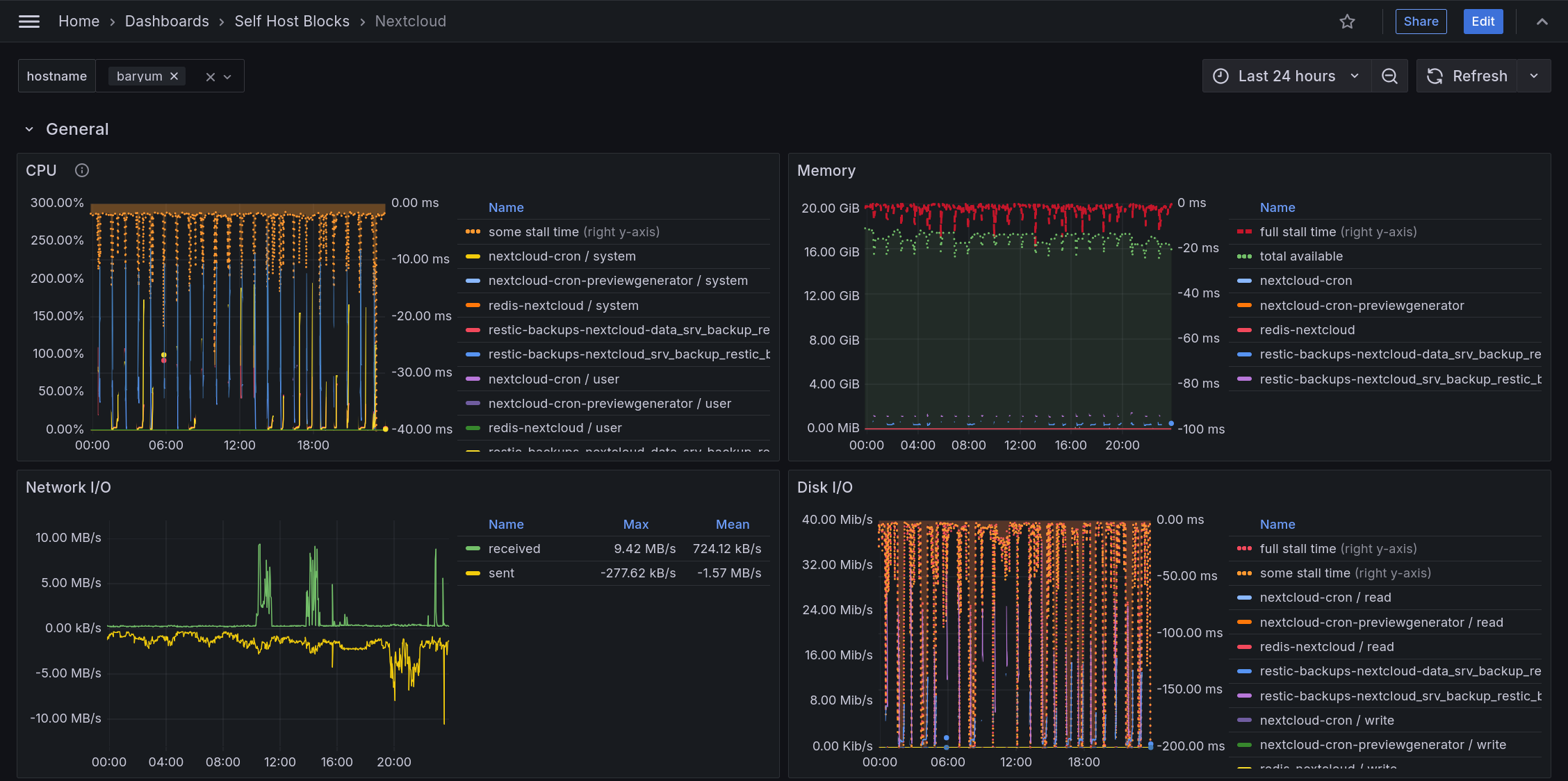
- The General section shows Nextcloud related services. This includes cronjobs, Redis and backup jobs.
- CPU shows stall time which means CPU is maxed out. This graph is inverted so having a small area at the top means the stall time is low.
- Memory shows stall time which means some job is waiting on memory to be allocated. This graph is inverted so having a small area at the top means the stall time is low. Some stall time will always be present. Under 10% is fine but having constantly over 50% usually means available memory is low and SWAP is being used. Memory also shows available memory which is the remaining allocatable memory.
- Caveat: Network I/O shows the network input and output for all services running, not only those related to Nextcloud.
- Disk I/O shows "some" stall time which means some jobs were waiting on disk I/O.
Disk is usually the slowest bottleneck so having "some" stall time is not surprising.
Fixing this can be done by using disks allowing higher speeds or switching to SSDs.
If the "full" stall time is shown, this means all jobs were waiting on disk i/o which
can be more worrying. This could indicate a failing disk if "full" stall time appeared recently.
These graphs are inverted so having a small area at the top means the stall time is low.
Memory also shows available memory which is the remaining allocatable memory.
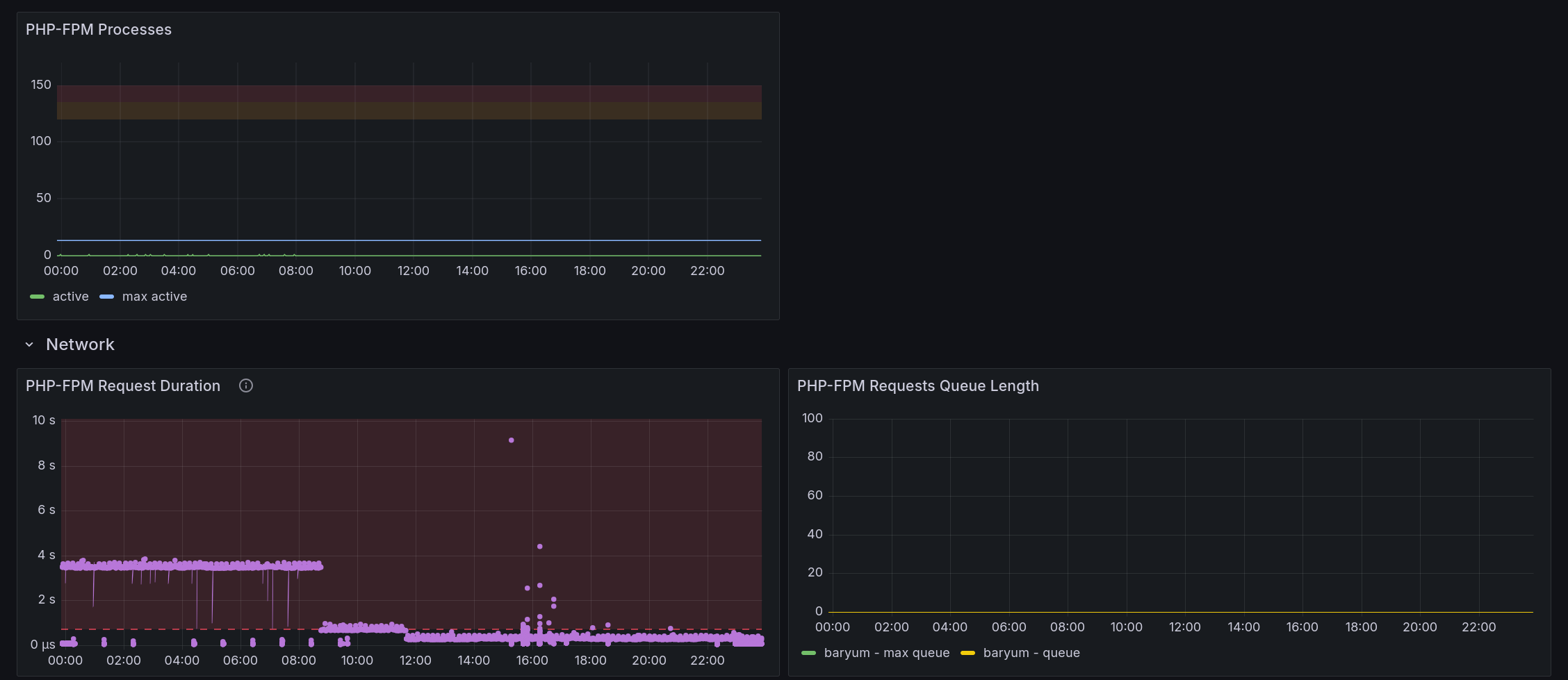
- PHP-FPM Processes shows how many processes are used by PHP-FPM. The orange area goes from 80% to 90% of the maximum allowed processes. The read area goes from 90% to 100% of the maximum allowed processes. If the number of active processes reaches those areas once in a while, that's fine but if it happens most of the time, the maximum allowed processes should be increased.
- PHP-FPM Request Duration shows one dot per request and how long it took. Request time is fine if it is under 400ms. If most requests take longer than that, some tracing is required to understand which subsystem is taking some time. That being said, maybe another graph in this dashboard will show why the requests are slow - like disk or other processes hoarding some resources running at the same time.
- PHP-FPM Requests Queue Length shows how many requests are waiting
to be picked up by a PHP-FPM process. Usually, this graph won't show
anything as long as the PHP-FPM Processes graph is not in the red area.
Fixing this requires also increasing the maximum allowed processes.
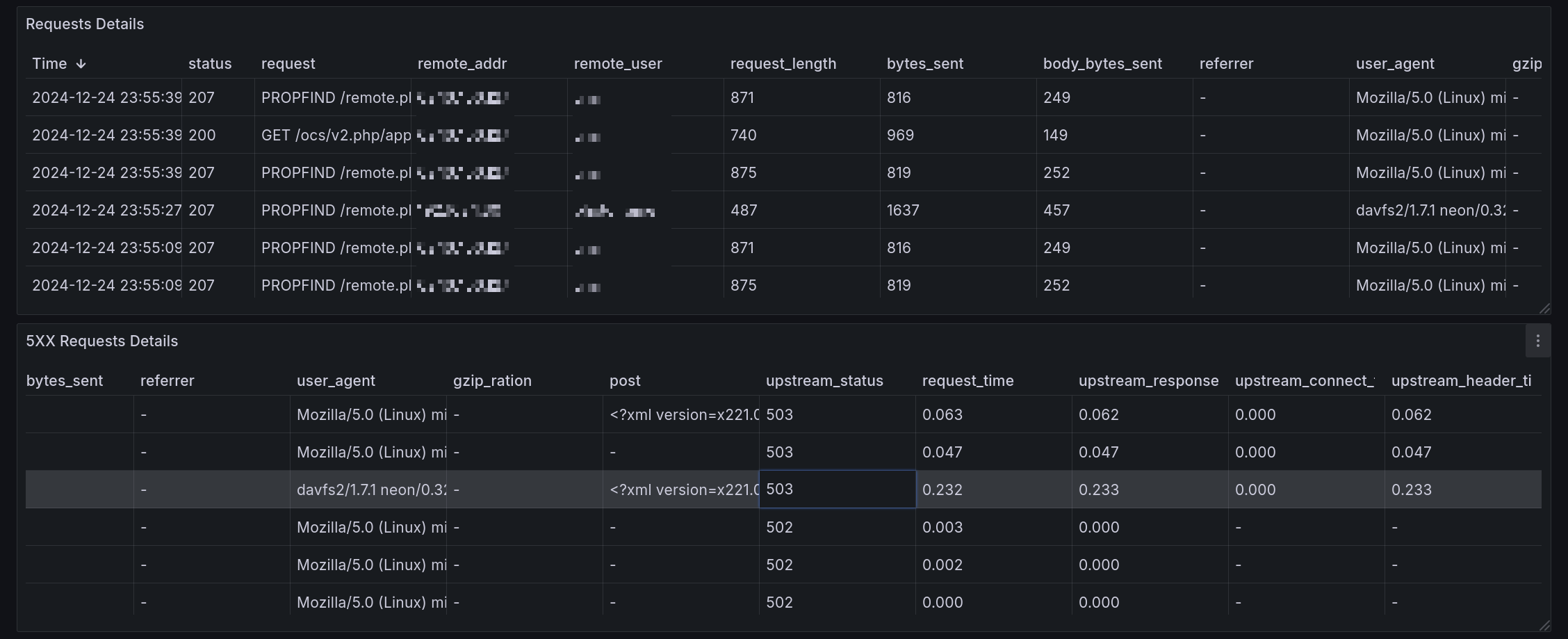
- Requests Details shows all requests to the Nextcloud service and the related headers.
- 5XX Requests Details shows only the requests having a 500 to 599 http status.
Having any requests appearing here should be investigated as soon as possible.
- Log: <service name> shows all logs from related systemd
<service name>.servicejob. Having no line here most often means the job ran at a time not currently included in the time range of the dashboard.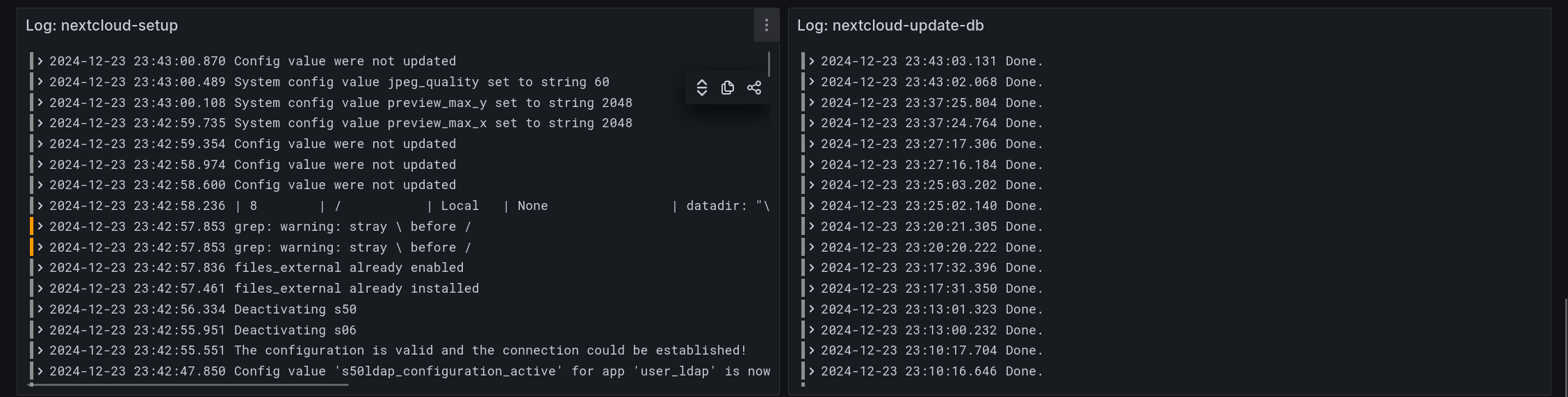
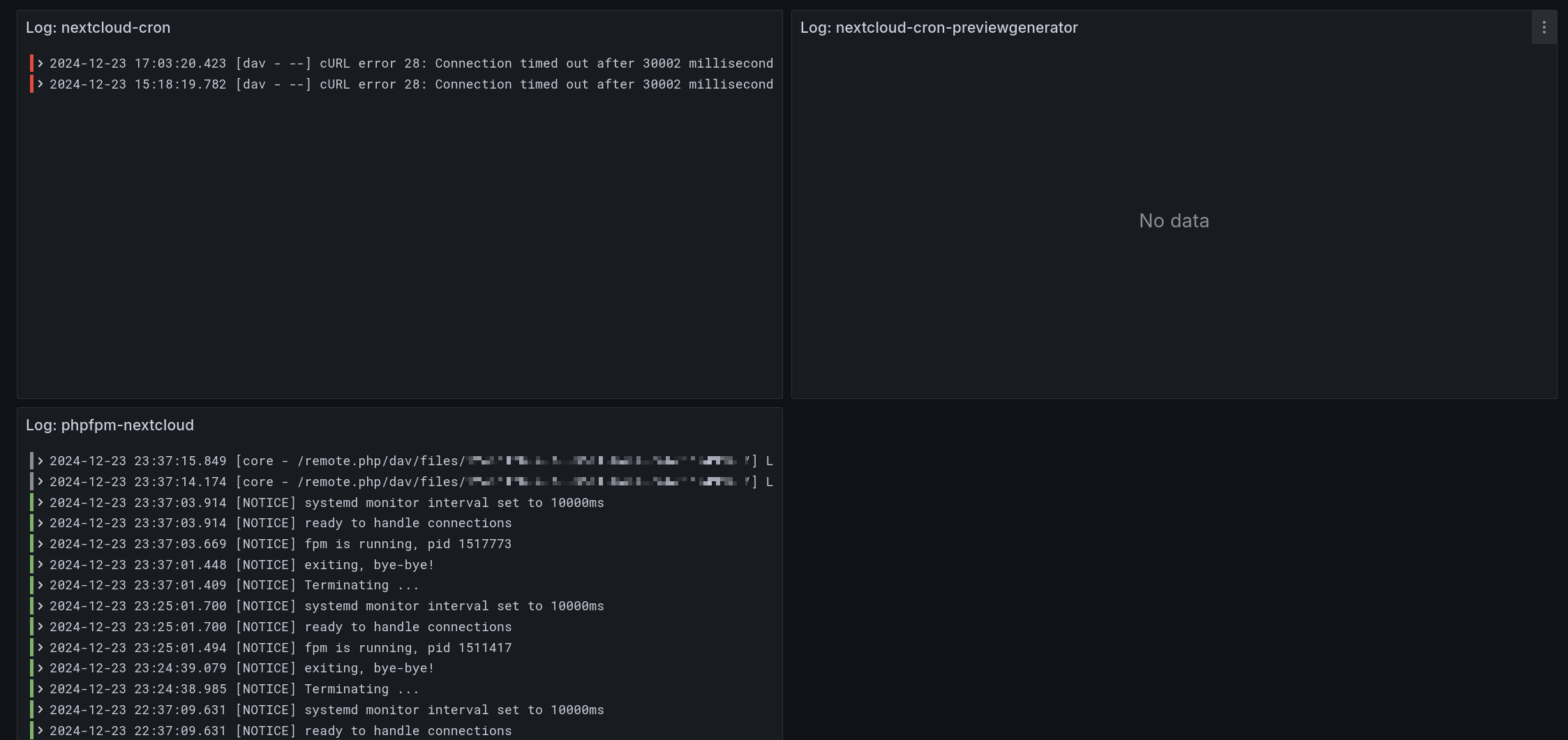
- A lot of care has been taken to parse error messages correctly.
Nextcloud mixes json and non-json messages so extracting errors
from json messages was not that easy.
Also, the stacktrace is reduced.
The result though is IMO pretty nice as can be seen by the following screenshot.
The top line is the original json message and the bottom one is the parsed error.

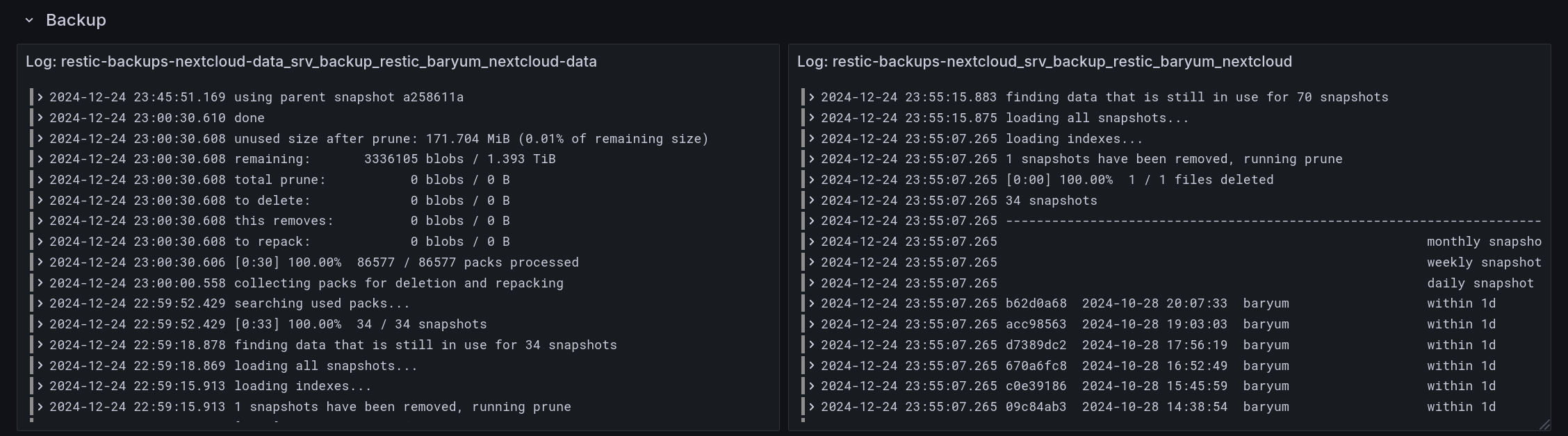
- Backup logs show the output of the backup jobs.
Here, there are two backup jobs, one for the core files of Nextcloud
stored on an SSD which includes the appdata folder.
The other backup job is for the external data stored on HDDs which contain all user files.
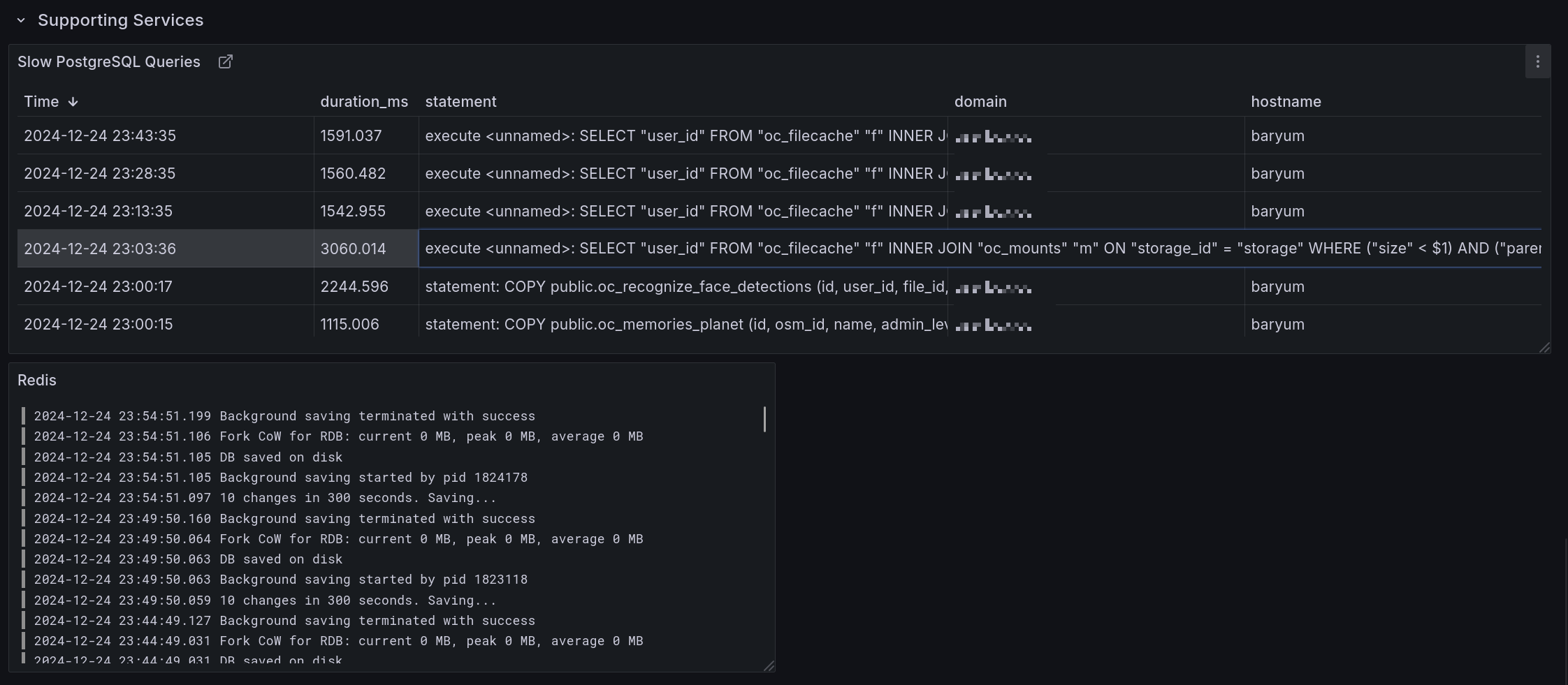
- Slow PostgreSQL queries shows all database queries taking longer than 1s to run.
- Redis shows all Redis log output.
Debug
On the command line, the occ tool is called nextcloud-occ.
In case of an issue, check the logs for any systemd service mentioned in this section.
On startup, the oneshot systemd service nextcloud-setup.service starts. After it finishes, the
phpfpm-nextcloud.service starts to serve Nextcloud. The nginx.service is used as the reverse
proxy. postgresql.service run the database.
Nextcloud' configuration is found at ${shb.nextcloud.dataDir}/config/config.php. Nginx'
configuration can be found with systemctl cat nginx | grep -om 1 -e "[^ ]\+conf".
Enable verbose logging by setting the shb.nextcloud.debug boolean to true.
Access the database with sudo -u nextcloud psql.
Access Redis with sudo -u nextcloud redis-cli -s /run/redis-nextcloud/redis.sock.
Options Reference
id-prefix: services-nextcloudserver-options-
list-id: selfhostblocks-service-nextcloud-options
source: @OPTIONS_JSON@